User Settings
Configure user profiles, account preferences, password settings, notifications, dashboard preferences, and account management options inside Print Shop Worx.
This support article explains how to configure and maintain User Settings so staff accounts remain secure, organised, and personalised for daily workflows.

Overview
The User Settings section controls individual account preferences and profile information for staff members using Print Shop Worx.
These settings affect how users log in, receive notifications, view dashboards, and interact with different areas of the system.
Step-by-Step Instructions
Users & Permissions Documentation
Overview
The Users & Permissions module allows businesses to manage staff accounts, user access levels, security permissions, and operational control inside Print Shop Worx.
This system helps businesses securely manage who can access specific areas of the platform while improving accountability and workflow control.
The Users & Permissions module is commonly used by:
- Business owners
- Administrators
- Production managers
- Sales managers
- Human resources staff
- Department supervisors
Main Functions
The Users & Permissions module allows businesses to:
- Create user accounts
- Assign user roles
- Manage permissions
- Restrict system access
- Track user activity
- Secure sensitive information
- Manage staff workflows
- Control department access
- Reset passwords
- Disable user accounts
Why Users & Permissions Are Important
User management helps businesses:
- Improve system security
- Protect sensitive data
- Reduce unauthorized access
- Improve accountability
- Organize staff workflows
- Control operational access
What Is A User Account?
Purpose
A User Account is an individual login profile assigned to a staff member or approved system user.
Each user account may include:
- Name
- Email address
- Password
- User role
- Permission settings
- Activity tracking
User Dashboard
Purpose
The User Dashboard provides visibility into all active and inactive user accounts.
Users with administrator access can:
- Create users
- Edit user details
- Assign permissions
- Disable accounts
- Reset passwords
- Monitor user activity
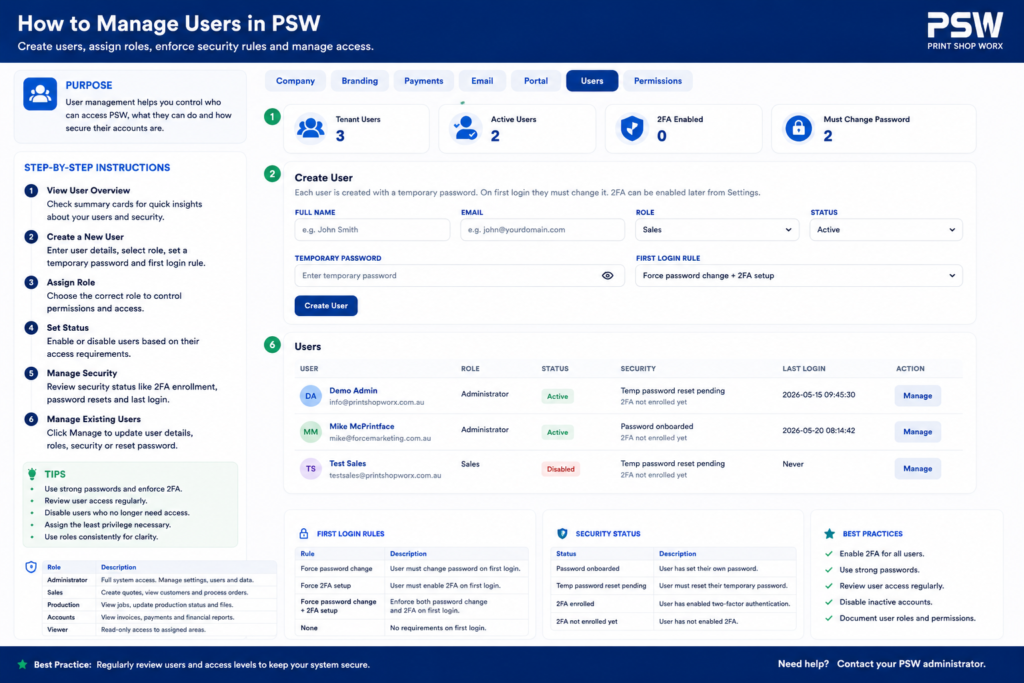
Standard User Setup Workflow
User Creation Process
- Open Users & Permissions
- Click Add User
- Enter user details
- Assign role or permissions
- Save user account
- Send login invitation
- User completes password setup
- User logs into the system
User Information Fields
Full Name
Stores the user’s name.
Used for:
- Login identification
- Workflow tracking
- Activity logs
- Staff assignments
Email Address
Purpose
The email address is used for:
- User login
- Password recovery
- Notifications
- Account invitations
Each user should have a unique email address.
Username
Purpose
Some systems may allow usernames instead of email logins.
Usernames help identify users within the system.
Password
Purpose
Passwords protect user accounts from unauthorized access.
Strong passwords should include:
- Uppercase letters
- Lowercase letters
- Numbers
- Special characters
User Status
Active
User can log into the system and access assigned features.
Inactive
User account is disabled and cannot access the platform.
Inactive accounts remain stored for historical tracking.
User Roles
Purpose
Roles simplify permission management by grouping common access settings.
Examples may include:
Role
Access Type
Administrator
Full system access
Sales Staff
Quotes & customers
Production Staff
Production workflows
Inventory Staff
Inventory & purchasing
Customer Service
Customer communication
Administrator Role
Purpose
Administrators generally have full access to the platform.
Administrator permissions may include:
- User management
- Financial access
- System settings
- Reporting
- Workflow configuration
Only trusted staff should receive administrator access.
Sales Staff Permissions
Purpose
Sales staff may access:
- Customers
- Quotes
- Invoices
- Sales dashboard
- Marketing tools
Sales users may have restricted access to:
- Financial settings
- System configuration
- User management
Production Staff Permissions
Purpose
Production users may access:
- Production Queue
- Artwork approvals
- Job tracking
- Inventory usage
Production staff may not access sensitive financial data.
Inventory Permissions
Purpose
Inventory users may access:
- Products
- Inventory
- Stock allocation
- Purchase Orders
- Supplier management
Customer Portal Permissions
Purpose
Customers may receive restricted portal access to:
- Quotes
- Invoices
- Artwork approvals
- Order tracking
Customers cannot access internal operational data.
Custom Permissions
Purpose
Businesses may configure custom permission settings for specific staff roles.
Custom permissions may control access to:
- Financial reports
- Cost pricing
- Production settings
- User management
- Inventory adjustments
Permission Categories
View Permissions
Controls whether users can view specific data or modules.
Create Permissions
Controls whether users can create new records.
Examples include:
- Quotes
- Customers
- Products
- Invoices
Edit Permissions
Controls whether users can modify existing records.
Delete Permissions
Controls whether users can permanently remove records.
Delete permissions are generally restricted for security reasons.
Approval Permissions
Purpose
Approval permissions control who can approve:
- Quotes
- Artwork
- Purchase Orders
- Workflow releases
Financial Permissions
Purpose
Financial permissions help protect sensitive business data.
Examples include:
- Cost pricing
- Profit reports
- Financial reports
- Payment management
User Activity Tracking
Purpose
The system may track user activity throughout the platform.
Activity tracking may include:
- Logins
- Record updates
- Status changes
- Production actions
- Financial changes
This improves accountability and auditing.
Login Security
Purpose
Security systems help protect user accounts and business information.
Security features may include:
- Password encryption
- Session timeouts
- Multi-factor authentication
- Login verification
- Failed login protection
Password Reset
Purpose
Administrators may reset passwords for users who cannot access their accounts.
Users may also use:
Forgot Password
to securely reset their own password.
Login Invitations
Purpose
New users may receive secure login invitations via email.
The invitation process helps users:
- Create passwords
- Activate accounts
- Access the system securely
Multi-Department Access
Purpose
Users may have access to multiple departments.
Examples include:
- Sales & Production
- Inventory & Purchasing
- Marketing & Customer Service
User Search & Filters
Purpose
Administrators can search users by:
- Name
- Role
- Department
- Status
- Permissions
Best Practices
Use Individual User Accounts
Each staff member should have their own login credentials.
This improves:
- Accountability
- Security
- Workflow tracking
Limit Administrator Access
Only trusted staff should receive full administrative permissions.
Protect Financial Data
Restrict access to:
- Cost pricing
- Profit reports
- Financial settings
where appropriate.
Disable Old Accounts
Disable inactive staff accounts immediately when staff leave the business.
Common Use Cases
Staff Onboarding
Create accounts for:
- Sales staff
- Production staff
- Administration staff
- Warehouse teams
Customer Portal Access
Provide restricted portal access to customers.
Department-Based Permissions
Control access based on operational responsibilities.
Workflow Accountability
Track which staff members completed operational tasks.
Troubleshooting
User Cannot Login
Check:
- Email address
- Password
- User status
- Internet connection
Permission Denied
Check:
- User role
- Assigned permissions
- Department access
Password Reset Not Working
Check:
- User email address
- SMTP settings
- Spam folder
Missing Menu Options
Check:
- Permission settings
- Role configuration
- User access levels
Related Features
The Users & Permissions module works closely with:
- Dashboard
- Customers
- Quotes
- Invoices
- Production Workflow
- Reporting
- Inventory
- Marketing
- Customer Portal
Summary
The Users & Permissions system is a critical security and operational management feature within Print Shop Worx.
Proper user management improves:
- Platform security
- Workflow accountability
- Operational control
- Data protection
- Staff organization
- System efficiency
A structured permission system helps businesses securely manage staff access while maintaining efficient operational workflows across the platform.
Best Practice
- Use strong passwords for all staff accounts.
- Keep user email addresses updated so notifications are received correctly.
- Review user settings whenever staff roles change.
- Use dashboard preferences to reduce clutter for production and admin staff.
- Remove or disable accounts for former staff members.
- Encourage users to review notification settings regularly.
Common Issues and Fixes
- User cannot log in: Check email address, password, and account status.
- Notifications not arriving: Review Email Settings and user notification preferences.
- Dashboard showing incorrect information: Review dashboard preferences and permissions.
- User cannot access sections: Check assigned permissions and user role settings.
- Password reset email not received: Confirm Email Settings and spam folder checks.
Related Support Articles
Related support articles include: