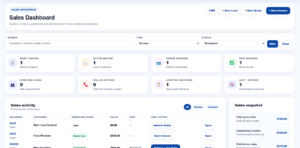
Purpose: This guide explains how to use the Sales CRM area in Print Shop Worx to manage leads, follow-ups, quote opportunities, customer conversations, and lost/won sales activity. Add your own screenshots into the marked image boxes as the app screens are finalised.
The CRM area helps staff manage sales opportunities before they become paid jobs. It is used for leads, follow-ups, customer notes, quote chasing, and lost/won quote tracking.
Important distinction: Marketing is for campaigns, social posts, email campaigns, and prospecting. Sales CRM is for leads, customer follow-ups, quote opportunities, and customer sales activity. |
CRM supports the early sales process. It does not replace the production workflow and should not create production work before payment.
Workflow rule: No job should be created or started without payment first. CRM is a sales tracking tool; it does not bypass quote, invoice, payment, or production controls. |
Before staff start using the CRM, complete the main Settings setup so customer records, emails, and documents work correctly.
☐ Company profile is complete in Settings.
☐ Branding/logo is uploaded.
☐ Users are created and permissions are correct.
☐ Email templates are set up for quote follow-up and customer messages.
☐ Products/services are added to Catalog.
☐ Pricing is configured.
☐ Customer records have email addresses and phone numbers where possible.
The CRM can be opened from the Sales workspace. The Sales screen should show CRM-related summary items and buttons such as CRM, New Lead, follow-ups due, or quotes awaiting response.
The CRM dashboard is designed to show the sales work that needs attention. Exact cards may change as the CRM grows, but the intended information is listed below.
Area | What it means |
Open leads | New enquiries or sales opportunities that have not yet been won, lost, or converted. |
Follow-ups due | Leads, customers, or quotes that need contact today or soon. |
Quotes awaiting response | Sent quotes that need chasing. |
Lost / expired quotes | Quotes that did not proceed. Useful for win-rate and lost-reason reporting. |
Recent leads | Recently created or updated CRM records. |
Sales activity | Recent quote, invoice, and customer activity. |
Use New Lead when someone enquires but is not ready for a quote yet, or when you want to track a sales opportunity before it becomes formal.
Lead statuses help staff understand what stage the opportunity is at.
Status | Use when |
New | A new enquiry has been received. |
Contacted | Someone has contacted the lead. |
Qualified | The enquiry is suitable and likely to become a quote. |
Quoted | A quote has been created for the opportunity. |
Won | The opportunity was won and moved forward. |
Lost | The customer did not proceed. |
On hold | The customer may proceed later but no action is needed right now. |
Notes and follow-ups make the CRM useful. Every call, email, quote chase, or important customer instruction should be recorded.
The CRM dashboard is designed to show the sales work that needs attention. Exact cards may change as the CRM grows, but the intended information is listed below.
Area | What it means |
Open leads | New enquiries or sales opportunities that have not yet been won, lost, or converted. |
Follow-ups due | Leads, customers, or quotes that need contact today or soon. |
Quotes awaiting response | Sent quotes that need chasing. |
Lost / expired quotes | Quotes that did not proceed. Useful for win-rate and lost-reason reporting. |
Recent leads | Recently created or updated CRM records. |
Sales activity | Recent quote, invoice, and customer activity. |
Use New Lead when someone enquires but is not ready for a quote yet, or when you want to track a sales opportunity before it becomes formal.
Use the CRM each day to keep sales work moving.
☐ Check follow-ups due today.
☐ Review sent quotes awaiting response.
☐ Contact customers with stale quotes.
☐ Update lead notes after each contact.
☐ Convert accepted quotes to invoices.
☐ Mark lost/expired quotes with a reason.
☐ Add new enquiries as leads.
☐ Review the sales snapshot at the end of the day.
Use this list as your built-in link map. Update or remove links if your page slugs are different.
Book a demo or contact support if you need help setting up your support pages or using Print Shop Worx.