
Email Settings
Configure outgoing email delivery, sender details, SMTP settings, reply-to addresses, and system notifications inside Print Shop Worx.
This support article explains how to configure and maintain Email Settings so quotes, invoices, customer notifications, artwork approvals, and system emails send correctly.

Overview
The Email Settings section controls how Print Shop Worx sends emails from your workspace. This includes quote emails, invoice emails, payment notifications, artwork approval requests, production updates, password emails, and internal alerts.
Correct email setup is important because many parts of the app rely on reliable communication with customers and staff.
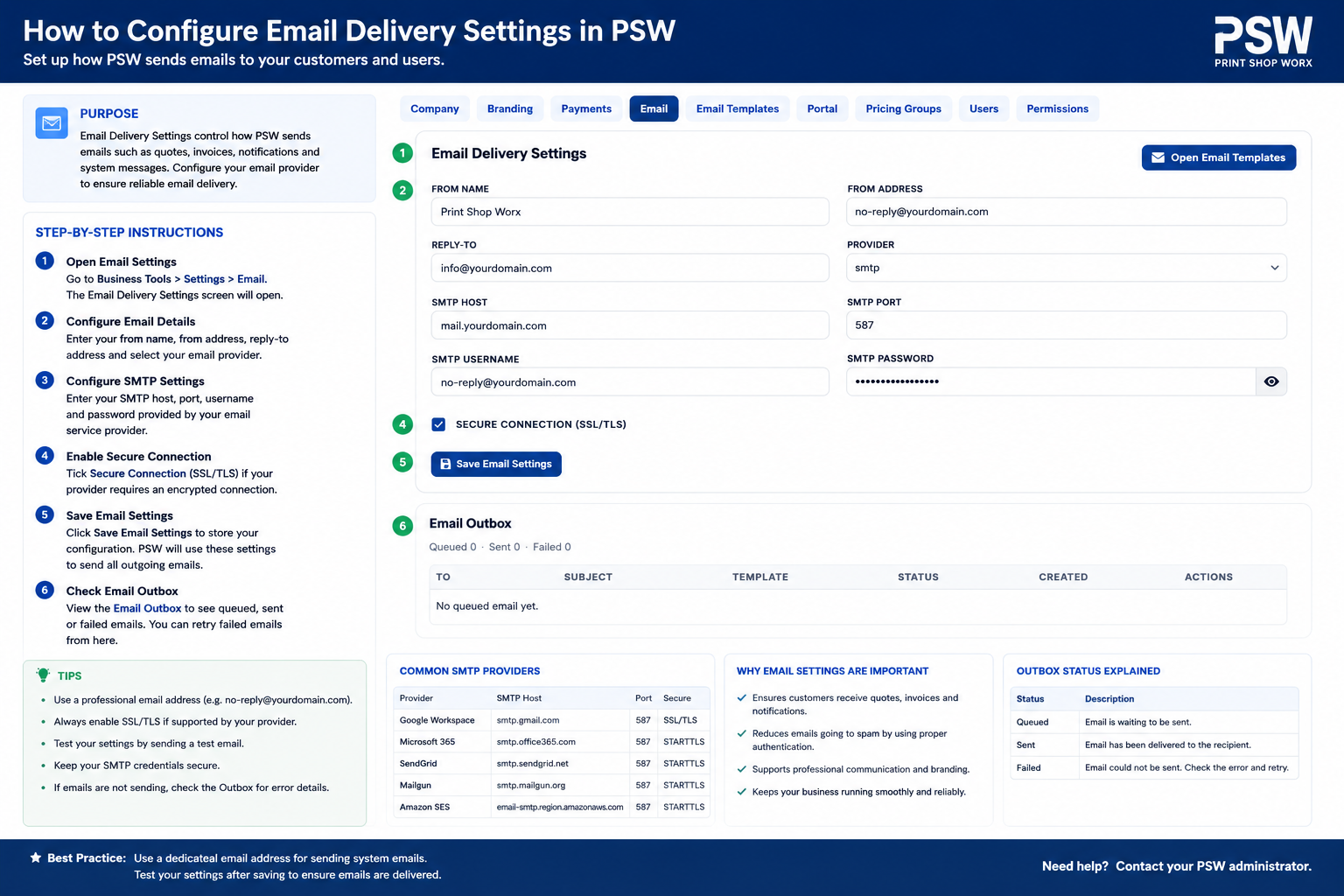
Step-by-Step Instructions
Email Setup Guide
Overview
The Email Setup section allows businesses to configure outgoing and incoming email services inside Print Shop Worx.
This setup enables the system to send:
- Quotes
- Invoices
- Artwork approvals
- Customer notifications
- Password reset emails
- Order updates
- Portal invitations
A properly configured email system improves communication reliability, automation, and customer experience.
Main Functions
The Email Setup area allows administrators to:
- Configure SMTP settings
- Set outgoing email addresses
- Configure authentication
- Test email sending
- Configure notification settings
- Manage email templates
- Set reply-to addresses
- Enable secure email delivery
What Is SMTP?
SMTP Explained
SMTP stands for:
Simple Mail Transfer Protocol
SMTP is the standard system used to send emails from applications, websites, and servers.
Print Shop Worx uses SMTP to send emails from your business email account to customers.
Examples include:
- Sending invoices
- Sending quotes
- Sending approval requests
- Sending customer notifications
Without SMTP, the app cannot reliably send emails.
Why SMTP Is Important
SMTP improves:
- Email reliability
- Email security
- Delivery success rates
- Spam prevention
- Business professionalism
Using SMTP helps ensure emails arrive in customer inboxes instead of spam folders.
Email Setup Fields
SMTP Host
Purpose
The SMTP Host is the mail server used to send emails.
Examples:
- smtp.gmail.com
- smtp.office365.com
- mail.yourdomain.com
This tells the app where to send outgoing email requests.
SMTP Port
Purpose
The SMTP Port controls how the email server communicates securely.
Common ports include:
Port
Purpose
587
Secure TLS email sending
465
SSL secure email sending
25
Older non-secure SMTP
Recommended
Use:
Port 587
because it supports secure encrypted email delivery.
SMTP Username
Purpose
The SMTP Username is the email account used to send emails.
Examples:
- info@yourbusiness.com
- sales@yourbusiness.com
- accounts@yourbusiness.com
This account becomes the sender of outgoing system emails.
SMTP Password
Purpose
The SMTP Password authenticates the email account.
This confirms that the app has permission to send emails from the account.
Important:
- Passwords should be stored securely
- App passwords may be required
- Never share SMTP credentials publicly
Encryption Type
Purpose
Encryption protects email communication between the app and the mail server.
Common encryption methods include:
Type
Description
TLS
Modern secure encryption
SSL
Older secure encryption
None
Not recommended
Recommended
Use:
TLS
because it provides secure modern email encryption.
From Email Address
Purpose
The From Email Address is the sender customers will see.
Examples:
- quotes@yourbusiness.com
- sales@yourbusiness.com
- support@yourbusiness.com
This improves:
- Brand professionalism
- Customer trust
- Email recognition
Reply-To Address
Purpose
The Reply-To Address controls where customer replies are sent.
Example:
A quote may be sent from:
no-reply@yourbusiness.com
but replies can go to:
sales@yourbusiness.com
This helps organize customer communication.
Test Email Function
Purpose
The Test Email button checks whether email settings are configured correctly.
The test verifies:
- SMTP connection
- Login credentials
- Encryption settings
- Email delivery functionality
Common Email Providers
Gmail SMTP Settings
Setting
Value
SMTP Host
smtp.gmail.com
Port
587
Encryption
TLS
Important:
Google may require:
- App Passwords
- Two-factor authentication
- Less secure app settings disabled
Microsoft 365 SMTP Settings
Setting
Value
SMTP Host
smtp.office365.com
Port
587
Encryption
TLS
cPanel / Hosting SMTP Settings
Setting
Example
SMTP Host
mail.yourdomain.com
Port
587
Encryption
TLS
Why Professional Email Matters
Using a professional domain email improves:
- Brand trust
- Email deliverability
- Customer confidence
- Spam prevention
Recommended:
info@yourbusiness.com
instead of:
yourbusiness@gmail.com
Email Notifications
Purpose
The notification system automatically sends emails for important events.
Possible notifications include:
- Quote ready
- Invoice issued
- Payment received
- Artwork approval required
- Job completed
- Shipment tracking
Email Templates
Purpose
Email templates control the appearance and wording of outgoing emails.
Templates may include:
- Business logo
- Company details
- Contact information
- Social media links
- Payment instructions
Best Practices
Use Business Domain Emails
Always use a business email domain where possible.
Example:
sales@yourbusiness.com
instead of free email accounts.
Use Secure Encryption
Always use:
TLS encryption
to improve security and protect customer data.
Test Email Delivery
Always send test emails after setup changes.
This helps verify:
- Correct login details
- Server connectivity
- Spam filtering issues
Avoid Spam Trigger Words
Avoid excessive:
- CAPITAL LETTERS
- Symbols
- Spam phrases
- Large image-only emails
This improves inbox delivery rates.
Common Use Cases
Sending Quotes
The app automatically emails quotes directly to customers.
Sending Invoices
Invoices can be automatically generated and emailed through the configured SMTP server.
Artwork Approval Notifications
Customers receive artwork approval requests via email with portal links.
Customer Portal Invitations
Customers receive secure invitation emails to access the portal.
Troubleshooting
Emails Not Sending
Check:
- SMTP Host
- SMTP Port
- Username and password
- Firewall restrictions
- Internet connection
Emails Going to Spam
Check:
- SPF records
- DKIM records
- Email reputation
- Professional domain usage
- Spam wording
Authentication Failed
Check:
- Correct password
- App password setup
- Two-factor authentication
- SMTP permissions
Connection Timeout
Check:
- Firewall settings
- Hosting restrictions
- SMTP port blocking
- SSL/TLS settings
Related Features
The Email Setup module works closely with:
- Quotes
- Invoices
- Customer Portal
- Notifications
- Artwork Approvals
- Password Reset System
- User Accounts
- Automation Workflows
Summary
The Email Setup section is a critical communication component within Print Shop Worx.
Correct email configuration improves:
- Customer communication
- Automation
- Delivery reliability
- Security
- Professional branding
- Workflow efficiency
A properly configured SMTP system ensures reliable and secure email delivery throughout the platform.
What to Check Before Saving
- Sender name matches your business name.
- Sender email address is correct and active.
- Reply-to email goes to the right inbox.
- SMTP host, port, username, and password are correct.
- Test email is received successfully.
- Emails are not landing in spam or junk folders.
Best Practice
- Use a branded business email address instead of a personal email address.
- Use a dedicated support or sales inbox for customer replies.
- Test email delivery before sending live quotes or invoices.
- Keep SMTP passwords and mail credentials secure.
- Update DNS records such as SPF, DKIM, and DMARC if your mail provider requires them.
- Review email settings after changing domain, hosting, or email provider.
Common Issues and Fixes
- Test email not received: Check SMTP host, port, username, password, and security method.
- Emails going to spam: Review SPF, DKIM, DMARC, and sender domain settings with your email provider.
- Customer replies going to the wrong inbox: Check the reply-to email address.
- Invoices or quotes not sending: Confirm Email Settings are saved and test email delivery is working.
- Password reset emails not arriving: Check spam folders and confirm the user email address is correct.
Related Support Articles
Related support articles include: