Branding Settings

Configure logos, brand colours, invoice branding, customer portal appearance, and visual identity settings throughout Print Shop Worx.

This support article explains how to configure and maintain Branding Settings inside Print Shop Worx.

Branding

Overview

The Branding Settings section controls how your business appears to customers across invoices, quotes, customer portal pages, reports, and outgoing emails.

Consistent branding helps create a professional experience and keeps customer-facing documents aligned with your business identity.

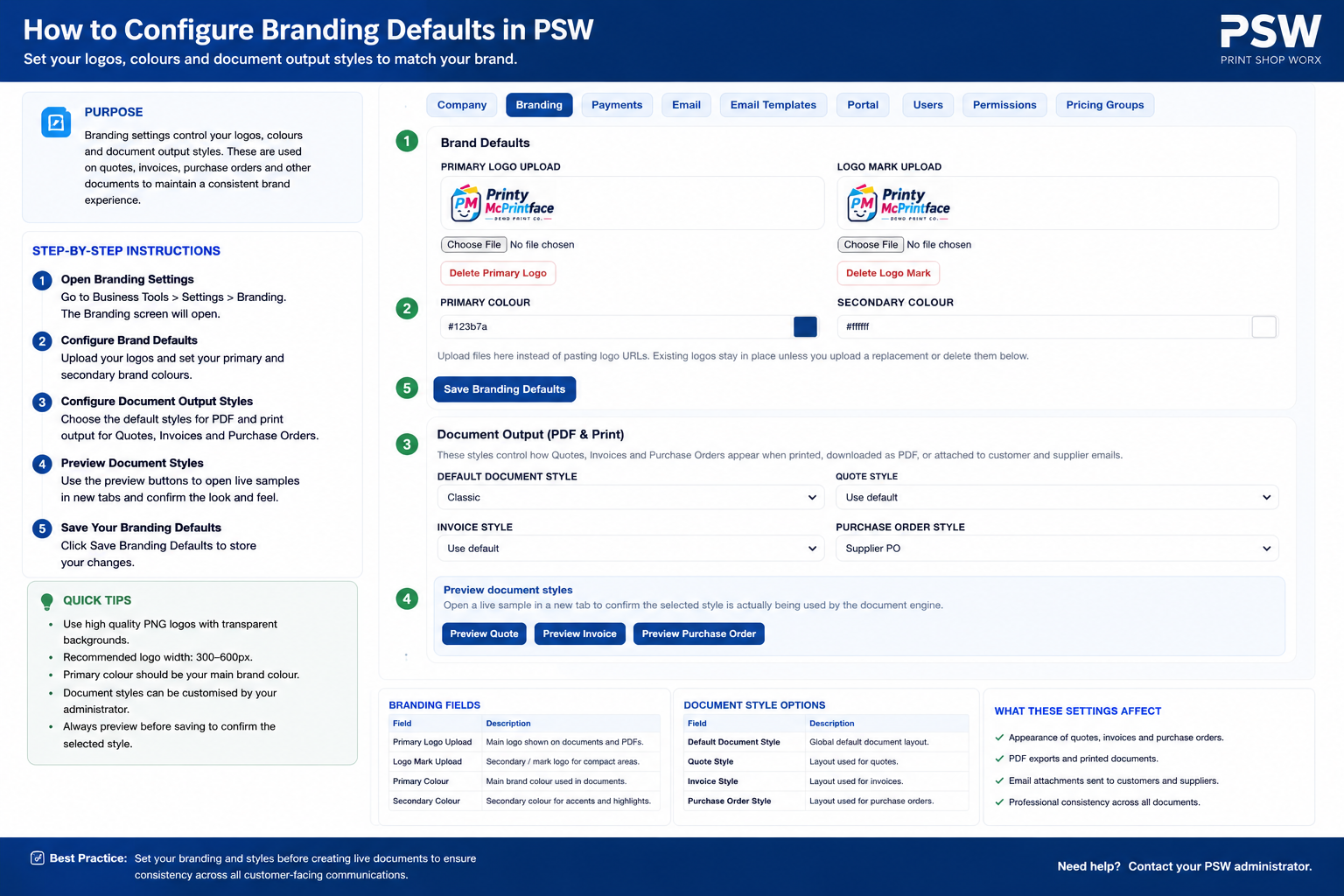
Step-by-Step Instructions

Branding Setup

What to Check Before Saving

  • Logo files are high resolution.
  • Brand colours match your website and marketing material.
  • Invoice previews display correctly.
  • Portal pages use the correct branding.
  • Email templates display the correct logo and colours.

Best Practice

  • Use PNG logos with transparent backgrounds where possible.
  • Keep branding consistent across invoices, website, and portal pages.
  • Use readable colours with strong contrast.
  • Optimise logos for both desktop and mobile display.
  • Review PDF appearance after changing logos or colours.

Common Issues and Fixes

  • Logo appears blurry: Upload a higher resolution image.
  • Colours look incorrect: Check HEX colour values and browser caching.
  • Portal branding not updating: Clear website and browser cache.
  • Invoice branding missing: Review invoice branding and PDF settings.