How to Use Marketing Campaigns
This guide explains how to use the Marketing Campaigns area in Print Shop Worx to plan, create, schedule, and review marketing activity for your print shop. It includes placeholder areas where screenshots can be added before sharing with customers or demo users.
Start here Before creating campaigns, complete Settings first: company profile, branding, email settings, customer records, and any email templates you want to reuse. |

What Marketing Campaigns Is For
Marketing Campaigns is used to organise customer communications and promotional activity. It helps keep campaigns, email templates, social activity, reviews, and events connected to the rest of the workflow.
- Plan campaigns for new products, seasonal promotions, customer reminders, and follow-ups.
- Use email templates to keep customer messages consistent.
- Track campaign status so draft, scheduled, and completed work is clear.
- Connect campaign activity with customers, leads, reviews, and social content.

Recommended Setup Before Using Campaigns
Marketing works best when the basic business settings are complete. Use this checklist before creating your first campaign.
Step | What to do | Why it matters |
1 | Open Settings and complete Company Profile. | Campaign emails and documents should use the correct business identity. |
2 | Upload your logo and brand assets in Branding. | Campaign messages should look consistent and professional. |
3 | Check email settings and sender details. | Customers need to recognise who the email is from. |
4 | Add or clean up customer records. | Campaigns need accurate customer names and email addresses. |
5 | Create reusable email templates. | Templates save time and reduce errors. |
6 | Confirm customer permission and unsubscribe practices. | Marketing should only be sent to suitable contacts. |
Where to Find Marketing Campaigns
- Log in to Print Shop Worx.
- Select Marketing from the top navigation.
- Open Marketing Dashboard or Campaigns.
- Use the campaign buttons or tabs to create and manage campaign work.
Campaign Statuses
Use statuses to show where each campaign sits in the workflow.
Step | What to do | Why it matters |
Draft | Campaign is being prepared. | Not ready to send or schedule. |
Scheduled | Campaign has a planned send or publish time. | Ready for review before release. |
Sent / Published | Campaign has been released. | Used for history and reporting. |
Paused | Campaign is temporarily stopped. | Useful if content needs changes. |
Completed | Campaign work is finished. | Ready for reporting or follow-up. |
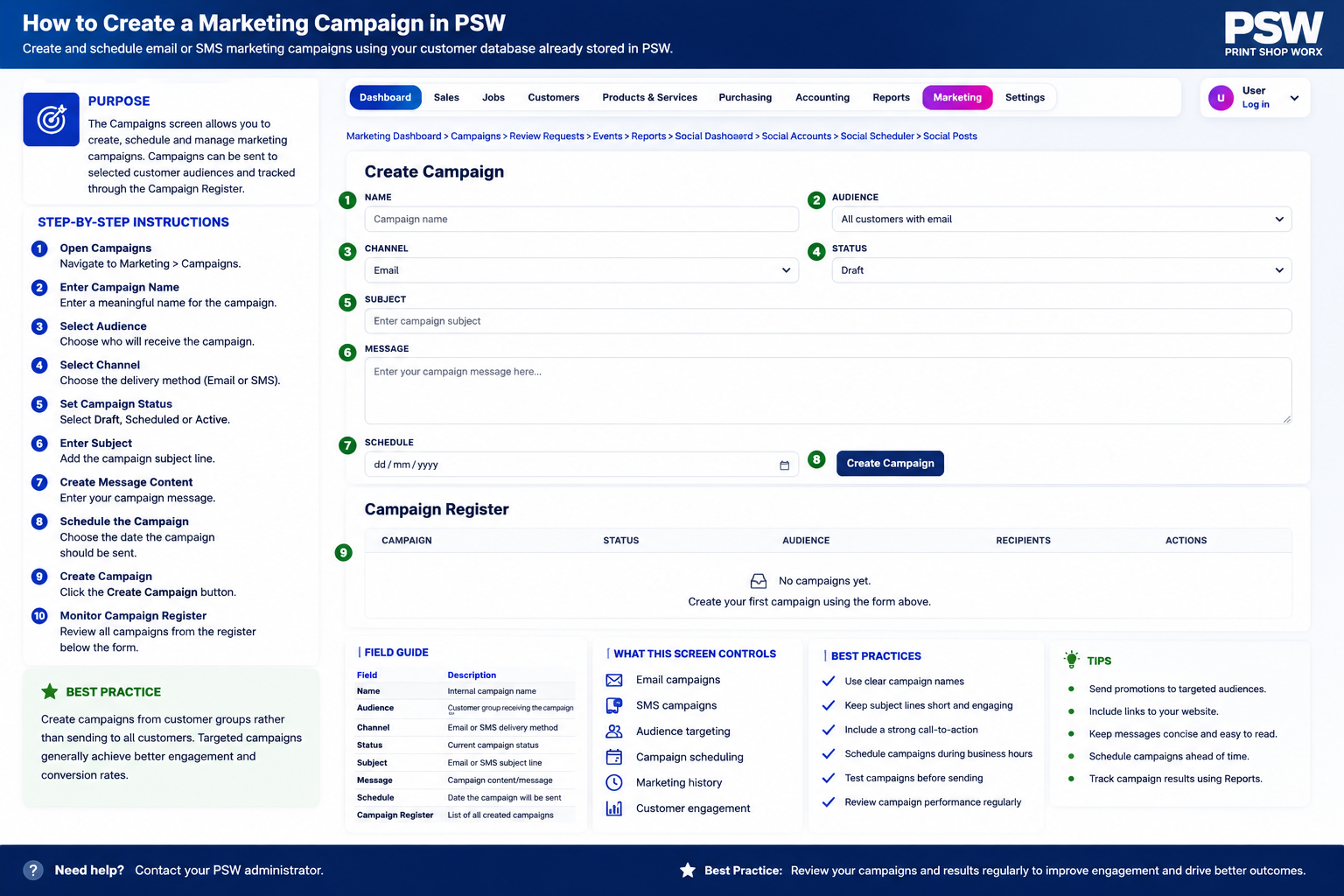
Create a New Marketing Campaign
A campaign should have a clear purpose, audience, message, and follow-up action. Keep the first version simple; you can expand it later.
- Open Marketing > Campaigns.
- Click New Campaign or Create Campaign.
- Enter the campaign name, objective, status, and target date.
- Select the target audience or customer group.
- Add campaign notes, offer details, or internal instructions.
- Save the campaign as Draft until the content is checked.
Campaign Planning Fields
Step What to do Why it matters
Campaign Name Use a clear name, such as Winter Workwear Promo. Makes campaigns easy to find later.
Objective Describe the goal, such as generate quote requests. Keeps the campaign focused.
Audience Choose customer group or lead type. Improves relevance and reduces wasted sends.
Offer / Message Summarise what the customer should know. Helps keep email and social content aligned.
Follow-up Action Decide what staff should do after responses arrive. Turns marketing activity into sales workflow.
Example Campaign Types
- Workwear reorder reminder
- New customer welcome campaign
- Review request follow-up
- Seasonal promotion
- Inactive customer reactivation
- New service announcement, such as embroidery, DTF, or signage
- Quote follow-up or lost quote recovery campaign
Using Email Templates
Email templates help staff send consistent messages without writing from scratch every time.
- Open Marketing or Settings > Email Templates.
- Create a template for the type of message you need.
- Add the subject line, body copy, and placeholders if supported.
- Save the template and test it before using it with customers.
Useful Marketing Email Templates
Step | What to do | Why it matters |
Reorder Reminder | Reminds a customer to reorder workwear, uniforms, signs, or promo products. | Useful for repeat sales. |
New Service Announcement | Promotes embroidery, DTF, signage, promotional products, or design services. | Useful for cross-selling. |
Review Request | Asks happy customers to leave a review. | Useful for trust building. |
Quote Follow-Up | Follows up customers who have not replied to a quote. | Useful for increasing win rate. |
Inactive Customer | Re-engages customers who have not ordered recently. | Useful for repeat business. |
Where to Find Marketing Campaigns
- Log in to Print Shop Worx.
- Select Marketing from the top navigation.
- Open Marketing Dashboard or Campaigns.
- Use the campaign buttons or tabs to create and manage campaign work.
What Marketing Campaigns Is For
Marketing Campaigns is used to organise customer communications and promotional activity. It helps keep campaigns, email templates, social activity, reviews, and events connected to the rest of the workflow.
- Plan campaigns for new products, seasonal promotions, customer reminders, and follow-ups.
- Use email templates to keep customer messages consistent.
- Track campaign status so draft, scheduled, and completed work is clear.
- Connect campaign activity with customers, leads, reviews, and social content.
Recommended Setup Before Using Campaigns
Marketing works best when the basic business settings are complete. Use this checklist before creating your first campaign.
Step | What to do | Why it matters |
1 | Open Settings and complete Company Profile. | Campaign emails and documents should use the correct business identity. |
2 | Upload your logo and brand assets in Branding. | Campaign messages should look consistent and professional. |
3 | Check email settings and sender details. | Customers need to recognise who the email is from. |
4 | Add or clean up customer records. | Campaigns need accurate customer names and email addresses. |
5 | Create reusable email templates. | Templates save time and reduce errors. |
6 | Confirm customer permission and unsubscribe practices. | Marketing should only be sent to suitable contacts. |
Where to Find Marketing Campaigns
- Log in to Print Shop Worx.
- Select Marketing from the top navigation.
- Open Marketing Dashboard or Campaigns.
- Use the campaign buttons or tabs to create and manage campaign work.
What Marketing Campaigns Is For
Marketing Campaigns is used to organise customer communications and promotional activity. It helps keep campaigns, email templates, social activity, reviews, and events connected to the rest of the workflow.
- Plan campaigns for new products, seasonal promotions, customer reminders, and follow-ups.
- Use email templates to keep customer messages consistent.
- Track campaign status so draft, scheduled, and completed work is clear.
- Connect campaign activity with customers, leads, reviews, and social content.
Recommended Setup Before Using Campaigns
Marketing works best when the basic business settings are complete. Use this checklist before creating your first campaign.
Step | What to do | Why it matters |
1 | Open Settings and complete Company Profile. | Campaign emails and documents should use the correct business identity. |
2 | Upload your logo and brand assets in Branding. | Campaign messages should look consistent and professional. |
3 | Check email settings and sender details. | Customers need to recognise who the email is from. |
4 | Add or clean up customer records. | Campaigns need accurate customer names and email addresses. |
5 | Create reusable email templates. | Templates save time and reduce errors. |
6 | Confirm customer permission and unsubscribe practices. | Marketing should only be sent to suitable contacts. |
Where to Find Marketing Campaigns
- Log in to Print Shop Worx.
- Select Marketing from the top navigation.
- Open Marketing Dashboard or Campaigns.
- Use the campaign buttons or tabs to create and manage campaign work.
All Support Article Links
Use this list as your built-in link map. Update or remove links if your page slugs are different.
- Welcome to Print Shop Worx
- First Login & Password Setup
- Customers
- Customer Portal
- Quotes
- Invoices
- Sales Workflow & CRM
- Sales Workspace
- Pricing Groups & Customer Pricing
- Product Setup
- Services
- Production Workflow
- Production Queue
- Stock Allocation & Ordering
- Purchase Orders
- Suppliers
- Scan Console
- Reports
- Marketing Campaigns
- Social Scheduler
- Workspace Setup
- Users & Permissions
Need help with Print Shop Worx?
Book a demo or contact support if you need help setting up your support pages or using Print Shop Worx.